Problem
In certain scenarios, you may need to restart your Azure Container Apps on schedule. Like I always joke about, a restart fixes 95% problems. However, if you do it manually, it will make you work 996. We need an automated way to complete this task. In this post, I will introduce how to use Azure Function timed trigger to automate this process.
Solution
Azure Functions are perfect for this kind of "do something on a schedule" task.
What You'll Need
- An Azure Function (Timer Trigger)
- A few NuGet packages to talk to Azure
- Your Container App's details
- About 30 minutes
RestartContainerApp Function
First, create an Azure Function as usual. I choose .NET 8.0 runtime. The completed code looks like this:
public class RestartContainerApp(ILoggerFactory loggerFactory)
{
    private readonly ILogger _logger = loggerFactory.CreateLogger<RestartContainerApp>();

    [Function("RestartContainerApp")]
    public async Task Run([TimerTrigger("0 0 2 * * *", RunOnStartup = true)] TimerInfo myTimer)
    {
        _logger.LogInformation($"Container App restart triggered at: {DateTime.UtcNow}");

        try
        {
            // Azure Resource details
            string subscriptionId = Environment.GetEnvironmentVariable("AZURE_SUBSCRIPTION_ID");
            string resourceGroupName = Environment.GetEnvironmentVariable("RESOURCE_GROUP_NAME");
            string containerAppName = Environment.GetEnvironmentVariable("CONTAINER_APP_NAME");
            string tenantId = Environment.GetEnvironmentVariable("AZURE_TENANT_ID");

            // For local development, use AzureCliCredential with tenant
            // For production, use ManagedIdentityCredential
            TokenCredential credential = IsRunningInAzure()
                ? new ManagedIdentityCredential()
                : new AzureCliCredential(new AzureCliCredentialOptions
                {
                    TenantId = tenantId
                });

            var armClient = new ArmClient(credential);

            // Get the Container App resource
            var subscriptionResource = armClient.GetSubscriptionResource(
                new Azure.Core.ResourceIdentifier($"/subscriptions/{subscriptionId}"));

            var resourceGroup = await subscriptionResource.GetResourceGroupAsync(resourceGroupName);
            var containerApps = resourceGroup.Value.GetContainerApps();
            var containerApp = await containerApps.GetAsync(containerAppName);

            _logger.LogInformation($"Found Container App: {containerAppName}");

            // Restart the Container App by stopping and starting all revisions
            var revisions = containerApp.Value.GetContainerAppRevisions();

            await foreach (var revision in revisions)
            {
                if (revision.Data.IsActive == true)
                {
                    _logger.LogInformation($"Restarting revision: {revision.Data.Name}");

                    // Deactivate and reactivate the revision
                    await revision.DeactivateRevisionAsync();
                    await Task.Delay(5000); // Wait 5 seconds
                    await revision.ActivateRevisionAsync();

                    _logger.LogInformation($"Revision {revision.Data.Name} restarted successfully");
                }
            }

            _logger.LogInformation("Container App restart completed successfully");
        }
        catch (Exception ex)
        {
            _logger.LogError($"Error restarting Container App: {ex.Message}");
            throw;
        }

        if (myTimer.ScheduleStatus is not null)
        {
            _logger.LogInformation("Next timer schedule at: {nextSchedule}", myTimer.ScheduleStatus.Next);
        }
    }

    private bool IsRunningInAzure()
    {
        return !string.IsNullOrEmpty(Environment.GetEnvironmentVariable("WEBSITE_INSTANCE_ID"));
    }
}
You will also need 3 NuGet packages:
dotnet add package Azure.ResourceManager
dotnet add package Azure.ResourceManager.AppContainers
dotnet add package Azure.Identity
To run it locally, set these values in local.settings.json
{
  "Values": {
    "AZURE_SUBSCRIPTION_ID": "your-sub-id",
    "AZURE_TENANT_ID": "your-tenant-id",
    "RESOURCE_GROUP_NAME": "your-rg",
    "CONTAINER_APP_NAME": "your-app-name"
  }
}
Key Points
The Timer Trigger: [TimerTrigger("0 0 2 * * *")] uses a CRON expression. It looks cryptic, but it basically says "run this at 2 AM UTC every single day." You can change it to whatever schedule you want:
0 0 */6 * * * - Every 6 hours0 30 1 * * 1 - Every Monday at 1:30 AM0 0 0 * * 0 - Every Sunday at midnight
Authentication: When you're testing locally, you need to use your Azure CLI credentials. But when it's deployed, it uses Managed Identity. That IsRunningInAzure() check handles both scenarios automatically.
Restart Logic: I grab all the active revisions and do the old "turn it off and on again" trick. Deactivate, wait 5 seconds, then activate again.
Deploy to Azure
Deploy your Azure Function to Azure as usual. But there are a few key steps that need your attention.
Managed Identity Authentication
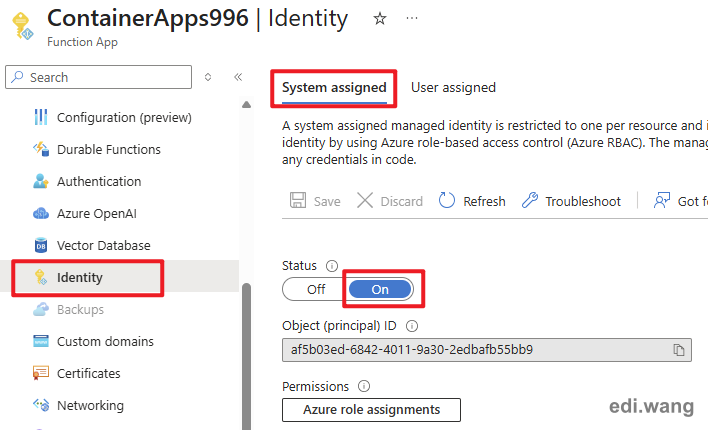
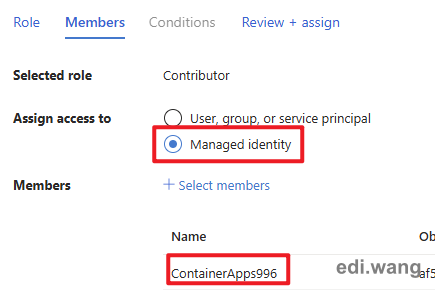
First, turn on the System assigned identity in your Azure Function instance.
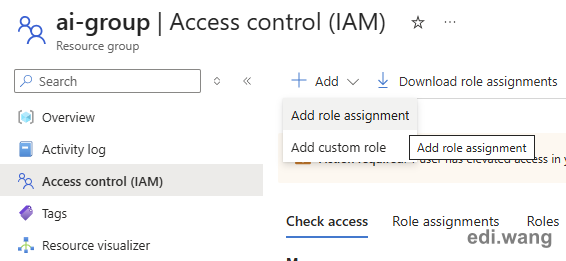
Then, go to the IAM settings of the resource group of your Azure Container Apps, and add a new role assignment
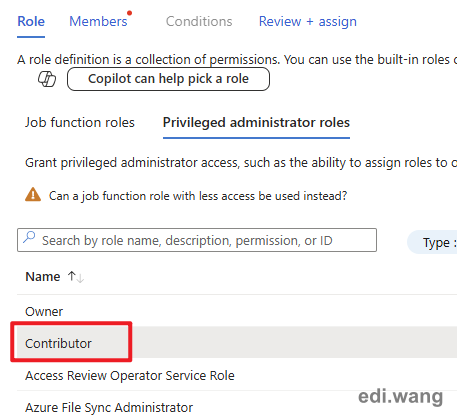
Add the Azure Function as a contributor role.
Application Settings
Go to the Environment variables blade of your Azure Function instance, and set those values as environment variables:
AZURE_SUBSCRIPTION_IDAZURE_TENANT_IDRESOURCE_GROUP_NAMECONTAINER_APP_NAME
The Result
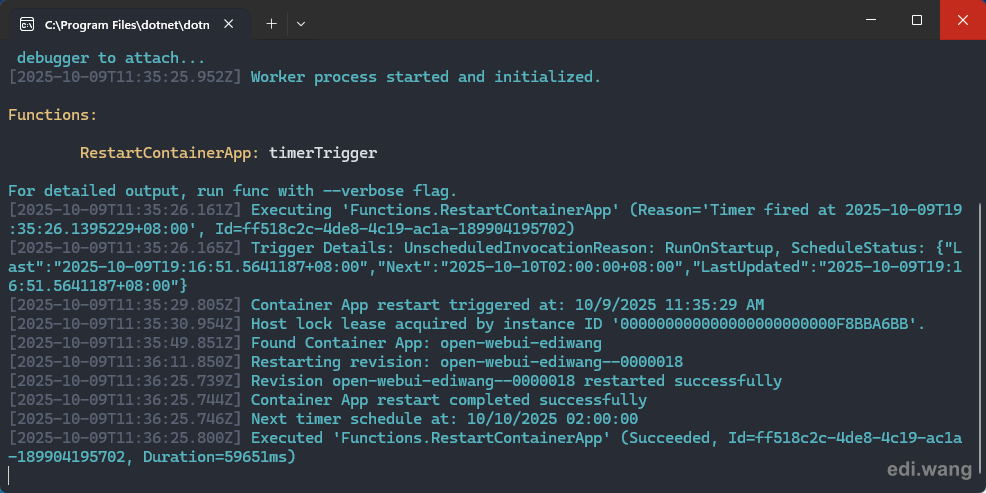
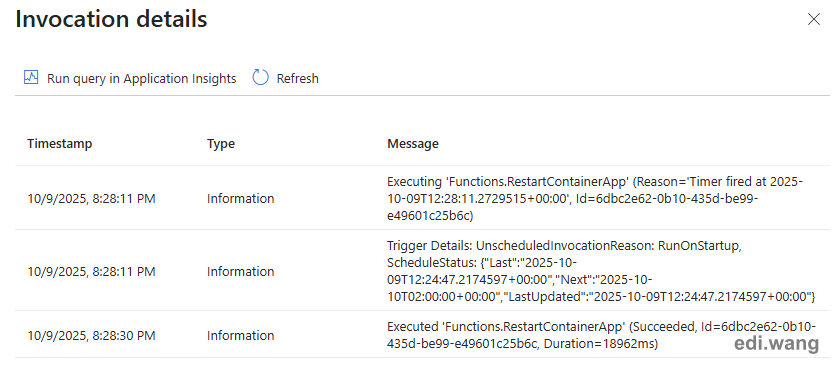
Now my Container App gets a nice, automated restart every night at 2 AM. I don't have to remember anything, I don't have to be at my computer!
Comments