Running a full desktop browser in the cloud and accessing it remotely can be surprisingly useful. You might want a disposable browser for testing and automation, a sandboxed environment isolated from your local machine
or a remote browser you can get to from any device with a decent network connection.
In this post, I'll walk through how I deployed a remote Chrome browser running in a Docker container on Azure Container Instances, and how I access it from a regular web browser.
I'll focus on the kasmweb/chrome image, which provides a Chrome desktop accessible over the web via VNC. There’s also linuxserver/chrome, but I couldn’t get that working on either ACI or Azure Container Apps, so this post will stick to the setup that actually works in Azure today.
Background
Years ago, I wrote a blog post about running Office 97 on an iPad as a RemoteApp with Windows Server Remote Desktop Services (RDS). It was fun and it worked. The same technique can be used to deploy a remote browser. But it was also heavy and expensive. You need to buy Windows Server licenses, setup full RDS deployment and configuration. By comparison, running a Linux container with Chrome in Azure is very lightweight: just a single container instance, billed per second and you can shut it down when you’re done.
If your main goal is "I want to click around in a remote desktop app from a browser", containers on ACI are a lot more approachable than RDS!
kasmweb/chrome Image
The kasmweb/chrome image is part of the Kasm Workspaces ecosystem, but you can run it standalone as a simple container. Out of the box it gives you a Linux desktop session in the browser with Google Chrome preinstalled and configured. You can access it from a modern web browser. Yes, no VNC client app is requried!
You can try it in your local environment:
docker run --rm -it --shm-size=512m -p 6901:6901 -e VNC_PW=password kasmweb/chrome:1.18.0

# https://IP_OF_SERVER:6901
# kasm_user / password
From an Azure perspective, the main things we care about are:
- Which port exposes the VNC web UI
- Which environment variables we might want to set
- The CPU/memory requirements for a smooth experience
Solution
Create Container Instance
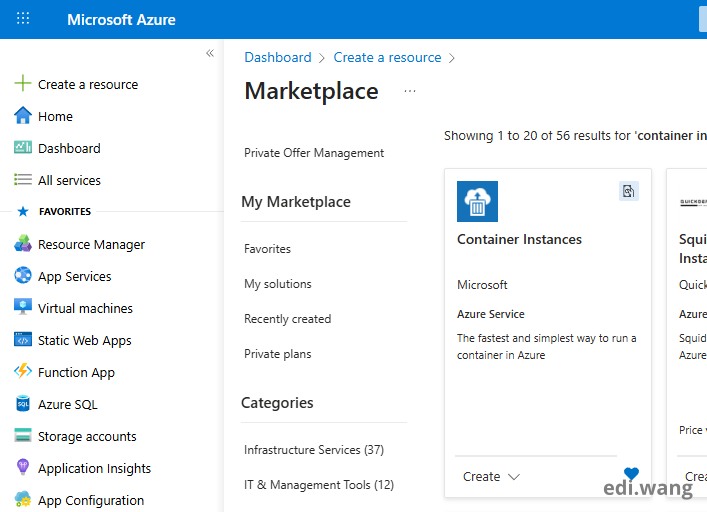
From Azure portal, search and create a Container Instance.
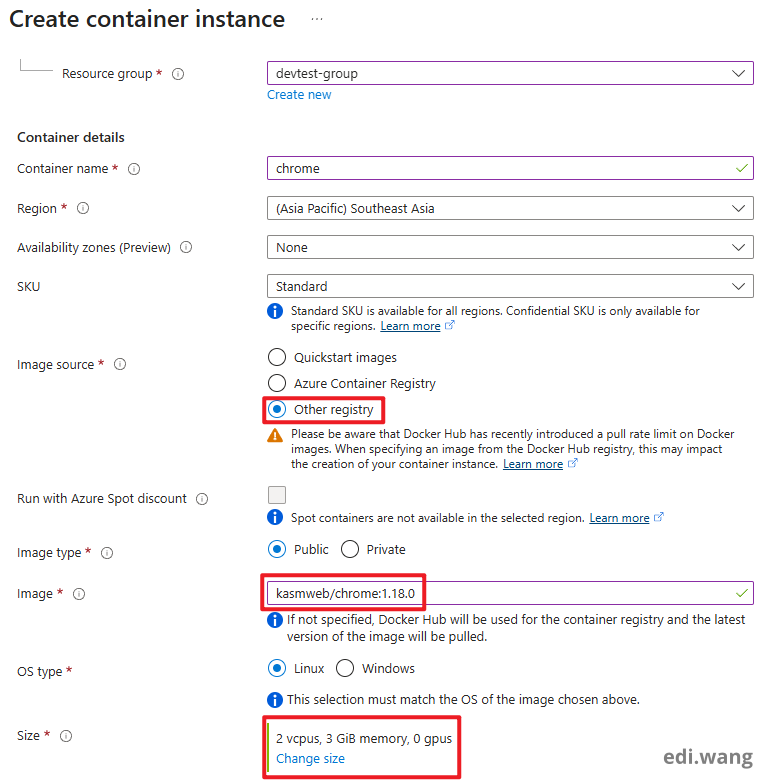
For the Basics tab.
- Image source: Other registry
- Image: kasmweb/chrome:1.18.0
- Size: 2vcpus, 3 GiB memory (You can customize it for your need)
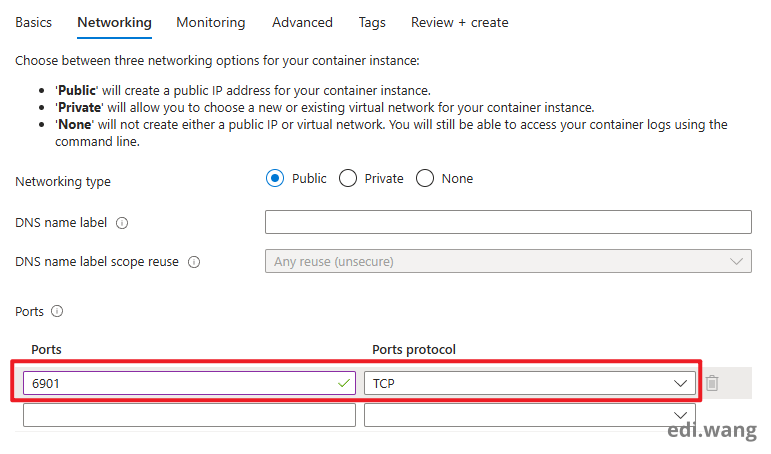
In Networking tab, set a TCP port: 6901. This will be used for remote access later.
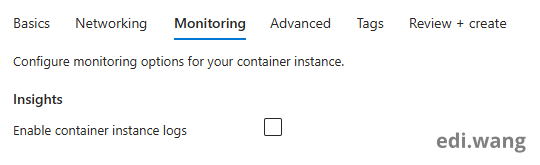
I disabled Insights since I don't need monitoring for this container.
In Advanced tab. Set an environment variable named "VNC_PW", for your remote access password.
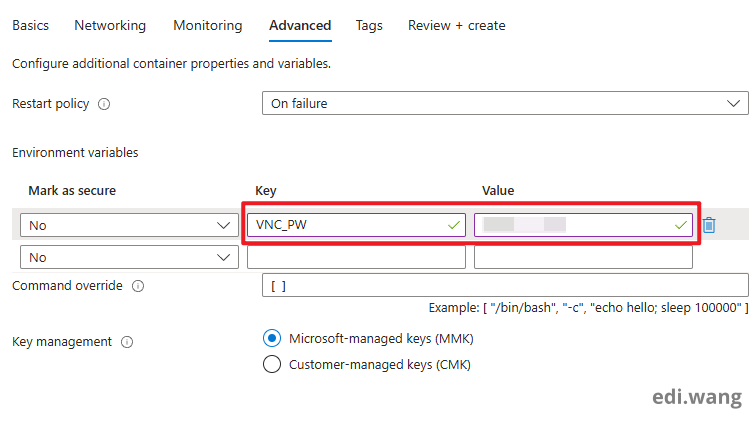
Now, go to review+create, and create your Container Instance.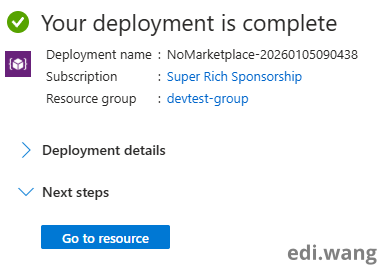
Using Remote Chrome
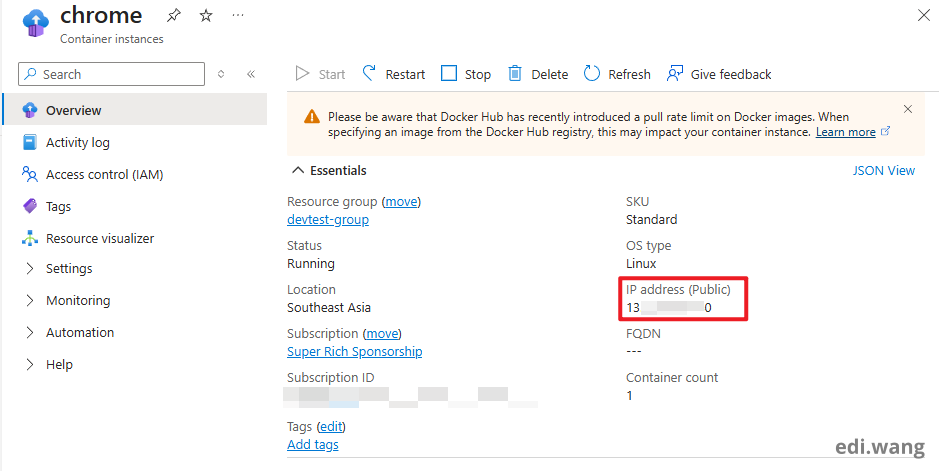
After deployment is completed, go to the Overview screen of your Container Instance. Copy the public IP address.
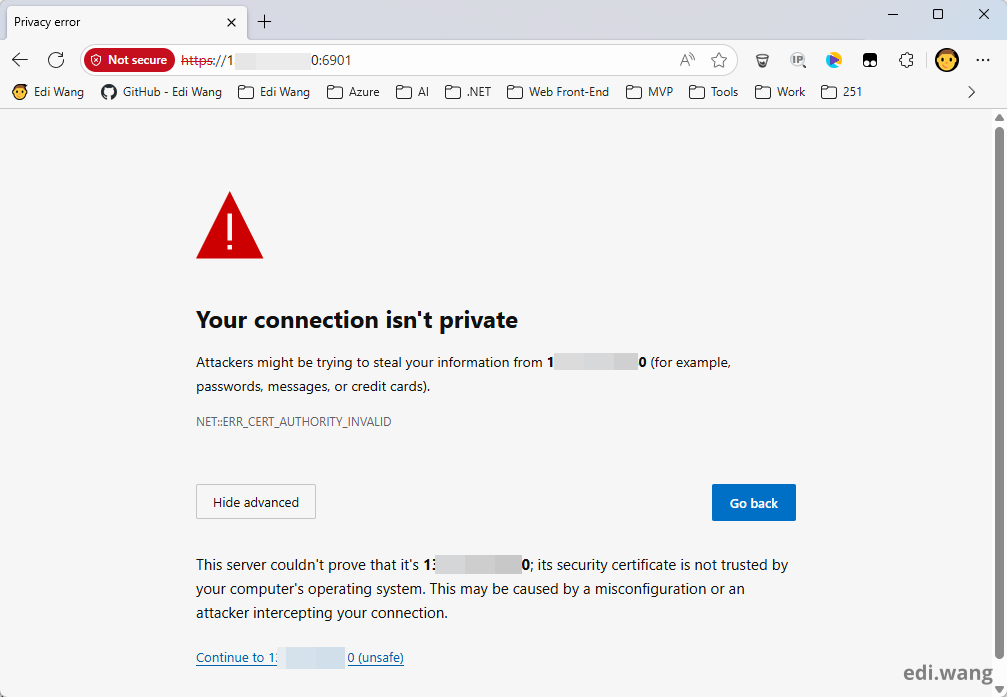
Open this IP address in your browser by https://<IP>:6901. You will see a warning about the invalid certificate, just ignore it.
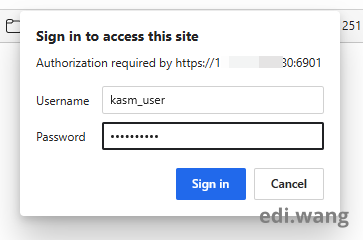
Use "kasm_user" and the password you set in environment variable "VNC_PW" to login.
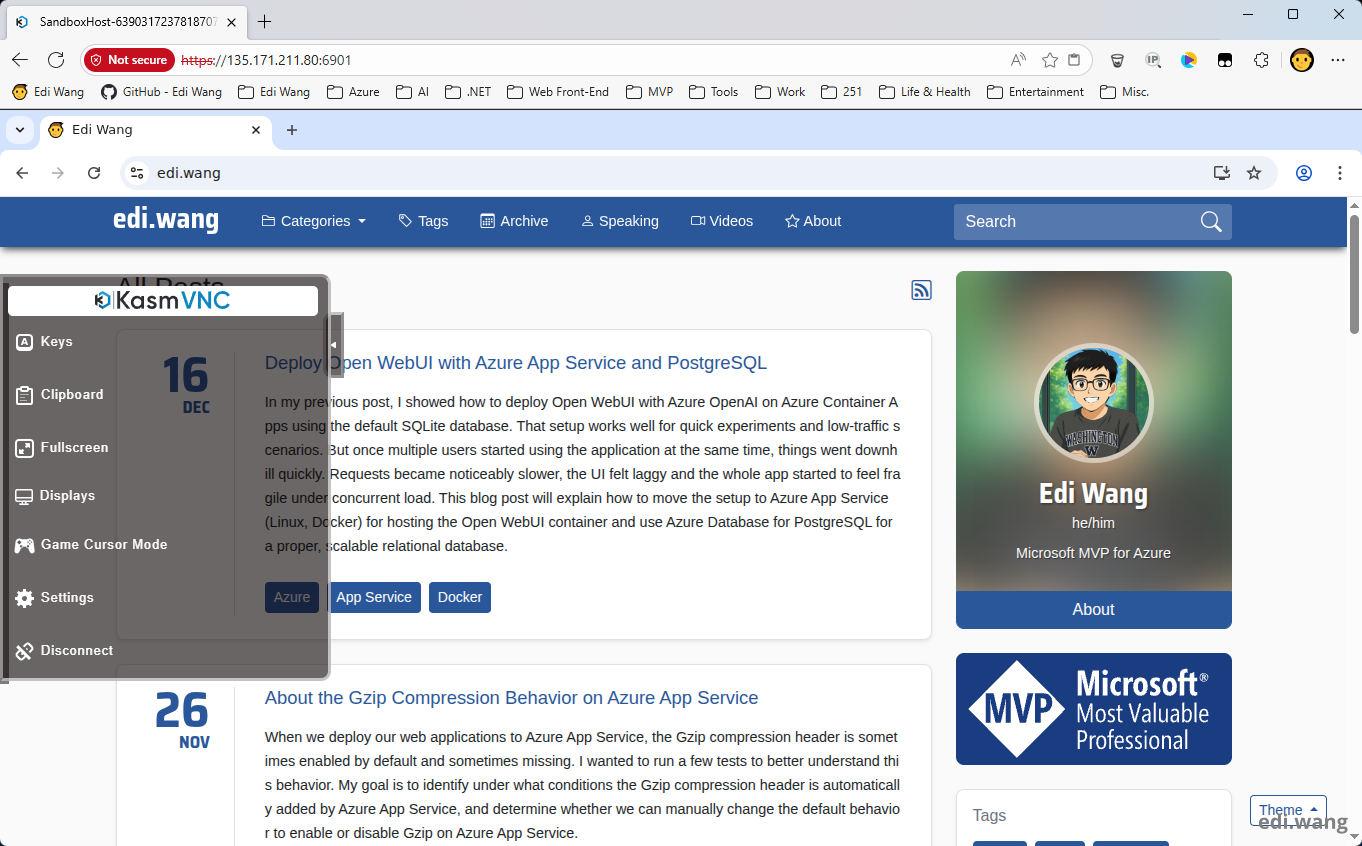
Now, you have a chrome browser running remotely within your local browser! No VNC client app required!
Cost and Resource Considerations
CPU/Memory: Chrome in a desktop session is more resource-intensive than a simple API container. Give it enough RAM and CPU to avoid a sluggish experience.
Billing: ACI is billed per second while the container is running. If you only need the browser occasionally, stop or delete the container between sessions.
Security: This is effectively a remote desktop exposed over the internet. At minimum, consider IP restrictions (e.g. via a private ACI + VPN or private endpoint + Application Gateway/WAF for real HTTPS access), avoid leaving a wide-open anonymous desktop on the public internet.
Comments