
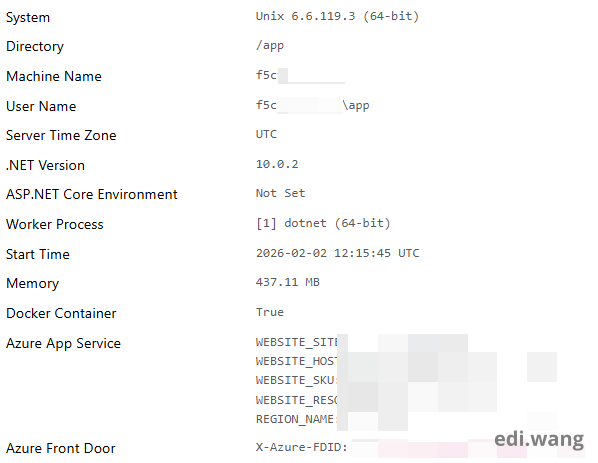
This blog runs on my open-source project Moonglade, a blogging platform built with ASP.NET Core and hosted on Azure. Recently, I migrated it from a Windows Server environment to Docker on Linux, still running on Azure App Service. It’s been running smoothly in production for about two months now.
In this post, I’ll walk through that migration journey: what I changed, a few tips and tricks along the way, and some lessons learned that might help you if you’re considering a similar move.
A Little Bit of History
This project has a long history. Back in the summer of 2008, I was a high school graduate getting ready for university. I learned ASP.NET WebForms from a Microsoft MVP and started building my own website using VB.NET and an Access database. At that time, cloud platforms were still very new. I hosted my site on a shared VPS, which ran into issues almost daily because the provider was unprofessional and unreliable.
In 2012, a Microsoft employee introduced me to Azure, and I became one of the early users of Azure App Service. The idea of deploying a website without managing a full VM was very new back then. The nice part of using a PaaS service was that I no longer had to worry about the underlying infrastructure. Microsoft managed the VMs for me, so I could focus on building features for my blog engine and writing content. At that time, Azure App Service only supported Windows plans: Windows Server and IIS were the underlying stack running my code. For .NET Framework applications, that was basically the default choice, so my ASP.NET WebForms blog ran on Windows, which was a very typical setup.
In 2018, with the release of .NET Core 2.1, I rewrote the entire blog system using ASP.NET Core and open-sourced it on GitHub. The final release of this rewrite completed in 2019 on .NET Core 3.0. I wrote two detailed posts about that migration: “Migrating Old ASP.NET Applications to .NET Core” and “This Blog Now Runs on .NET Core 3.0 and Azure”. However, even after the rewrite, it wasn’t truly cross-platform. There were still legacy design choices, like using Windows-style folder paths. On top of that, I wasn’t very familiar with Linux, so I didn’t feel confident troubleshooting issues if I moved the blog to App Service with Linux. As a result, the blog continued to run on Windows Server behind Azure App Service.
Later, I made an effort to add Docker support so the system could run on Linux, but with limited functionality. Because it’s an open-source project, I can’t expect everyone to use the exact same setup I do. Many users prefer to run the blog engine on-premises on Linux machines, and that’s where they hit feature gaps: my Linux support just wasn’t as complete as on Windows. Ironically, even though my quick deployment script used Linux, my own blog was still running on Windows, which understandably confused new users trying to get started.
By the end of 2025, I decided it was time to fully move to Docker on Linux and start treating Linux as a first-class citizen in my codebase. That migration was successful, and that’s why you’re now reading this blog post running on Docker on Linux in Azure App Service. 🤣
Why Migrating to Docker on Linux
There are a few reasons I decided to make this migration:
- Cost: Linux plans are typically about half the price of Windows plans on Azure App Service.
- Consistency: Docker gives me a consistent environment across all deployments, which greatly reduces production “surprises”.
- Deployment options: With Docker, my blog is no longer tied to Azure App Service only. Users can also run it on Azure Container Apps, AKS, or pretty much any container-friendly platform.
- Simpler deployment: The codebase now uses a single deployment path based on Docker. By dropping the separate “code deployment on Windows vs. Linux” options, the scripts are easier to maintain and there’s less room for bugs.
- Faster onboarding: Setting up a new Moonglade instance used to be painful, even with automated scripts. Now, with a single docker compose up, users can get a blog up and running in about a minute.
- Sidecar support: Azure App Service supports sidecar pattern for Docker deployments, which makes it possible for me to integrate with Phi-4 SLM as sidecar in the future.
That said, this doesn’t mean I’ve stopped liking Windows Server, or that the blog no longer runs on Windows. Windows is still a supported option, it’s just no longer the preferred one.
Now, Let's walk through the key steps of this migration.
0. Prepare the Code for Fully Cross Platform
This is a checklist to ensure your code runs on Linux. I spent most of the time refactoring my code and tested it on Linux environments to make sure every feature works.
File system paths, separators, and drives
- Remove hardcoded Windows paths ( C:\, D:\, UNC paths like \\server\share).
- Replace backslash path building with
Path.Combine(...). - Use
Path.DirectorySeparatorCharonly when needed; preferPath.Combine. - Use
IWebHostEnvironment.ContentRootPath/WebRootPathas base paths (notAppDomain.CurrentDomain.BaseDirectory). - Ensure paths don’t assume drive letters; use mount points or configurable base directories.
- Treat file paths as case-sensitive (e.g.,
Images/logo.png≠images/logo.png).
Configuration differences
- Remove dependencies on Windows Registry
- Remove dependencies on
machine.config
File permissions
- Don’t write into the application install directory.
- Use
Path.GetTempPath()instead of hard coded Windows temp path.
Encoding and Time
- Do not rely on Windows only encoding providers.
- Do not hard code Windows time zone names like "Pacific Standard Time", use IANA names.
1. For Local or On-Prem Deployments: Docker Compose
To make it easier for users to spin up Moonglade on their own machine or in an on-prem environment, I chose Docker Compose. With Compose, all the dependencies like database, network, file storage, can be set up with a single command. Users don’t need to understand all the details or wire up each piece manually, Docker Compose takes care of that for them.
The final compose.yaml file is:
services:
  web:
    image: ${MOONGLADE_IMAGE:-ediwang/moonglade:latest}
    build:
      context: .
      dockerfile: Dockerfile
    container_name: moonglade-web
    environment:
      ASPNETCORE_ENVIRONMENT: "Production"
      ConnectionStrings__MoongladeDatabase: "Server=moonglade-sqlserver;Database=moonglade;User Id=sa;Password=${MSSQL_SA_PASSWORD:-Work@996};Trusted_Connection=False;TrustServerCertificate=True;"
      ImageStorage__FileSystemPath: "/app/images"
    ports:
      - "8080:8080"
    depends_on:
      - database
    volumes:
      - moonglade-images:/app/images
    networks:
      - moonglade-network
  database:
    image: mcr.microsoft.com/mssql/server:2025-latest
    container_name: moonglade-sqlserver
    environment:
      MSSQL_SA_PASSWORD: "${MSSQL_SA_PASSWORD:-Work@996}"
      MSSQL_PID: "Express"
      ACCEPT_EULA: "Y"
    ports:
      - "1433:1433"
    volumes:
      - mssql-data:/var/opt/mssql
    networks:
      - moonglade-network

volumes:
  mssql-data:
  moonglade-images:

networks:
  moonglade-network:
    driver: bridge
Image and build
image: The image name is configurable via the MOONGLADE_IMAGE environment variable.
If MOONGLADE_IMAGE is not set, it falls back to ediwang/moonglade:latest.
This makes it easy to use a custom image in CI/CD, or just run the default public image locally.
Environment variables
ASPNETCORE_ENVIRONMENT: "Production": Runs the app in Production mode (as opposed to Development or Staging). This impacts things like error pages, logging, and configuration behavior.
ConnectionStrings__MoongladeDatabase: This is the standard ASP.NET Core config convention: ConnectionStrings:MoongladeDatabase in appsettings maps to ConnectionStrings__MoongladeDatabase in environment variables.
About image storage
ImageStorage__FileSystemPath: "/app/images": Tells the app to store images under /app/images inside the container.
This blog is storing images with file system by default. Users can configure the location of the image files in appsettings.json like this.
"ImageStorage": {
  "Provider": "filesystem",
  "FileSystemPath": "/app/images"
}
In Docker deployments, this will be typically mapped to a volume. To enable that, I need to first modify Dockerfile so that it can have correct ownership for image storage.
USER root
RUN mkdir -p /app/images && chown -R app:app /app/images
So that this will work in Docker Compose.
volumes:
  - moonglade-images:/app/images
This mounts a named volume called moonglade-images at /app/images inside the web container.
It matches the ImageStorage__FileSystemPath setting, and ensures uploaded images persist even if the container is recreated.
Network
The web container is attached to the moonglade-network Docker network (defined later). This is how it can resolve moonglade-sqlserver as the DB server.
Database
Uses the official SQL Server container image from the Microsoft Container Registry. Express is free and sufficient for many small/medium workloads like a blog system.
MSSQL_SA_PASSWORD: Sets the password for the sa login. It reads from the host environment variable MSSQL_SA_PASSWORD if present. Otherwise falls back to Work@996.
In a real deployment, you should override this with a secure password (e.g., via a secret or environment variable).
mssql-data is a named volume.
/var/opt/mssql is where SQL Server stores its data files inside the container.
This ensures that your database data persists across container restarts. You can update or recreate the database container without losing data.
Running Docker Compose
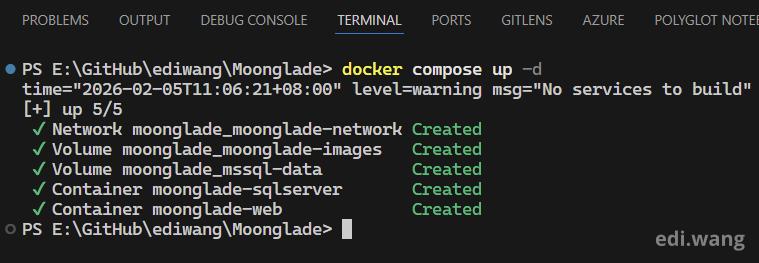
Now, users can deploy Moonglade on any machine that has Docker installed with one single command: docker compose up -d
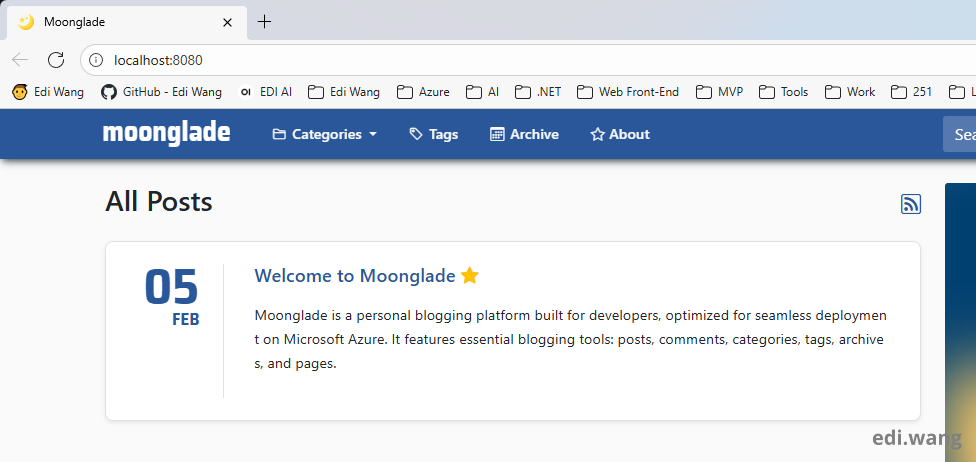
Visiting port 8080, you can see Moonglade is now running.
You can also use Docker Compose with Azure Container Apps, but in my case it’s not the right choice. Azure already provides SQL Database as a fully managed service, which is easier and more secure to use. There’s no real benefit in running a SQL Express instance alongside the web container when a managed Azure SQL Database is available.
2. For Azure Deployment
Migrating App Service Instance
First, there is a limit: You can not change an App Service from Windows Plan to Linux, you have to re-create a new App Service with a Linux Plan.
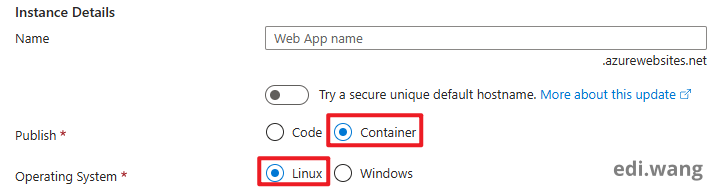
You need to choose "Container" as publish method when creating the App Service. You will no longer be able to change it after creation for now (Feb 2026).
The container image configuration can be changed after the initial creation. I publish my image to Docker Hub, the setup is like below.
Please note, the "Continuous deployment" checkbox will sometimes does not work with Docker Hub, although it seem to work fine with Azure Container Registry. So I would prefer leave this option unselected. If I need to update my production deployment, I will just restart my App Service instance. This will force Azure to check for image update.
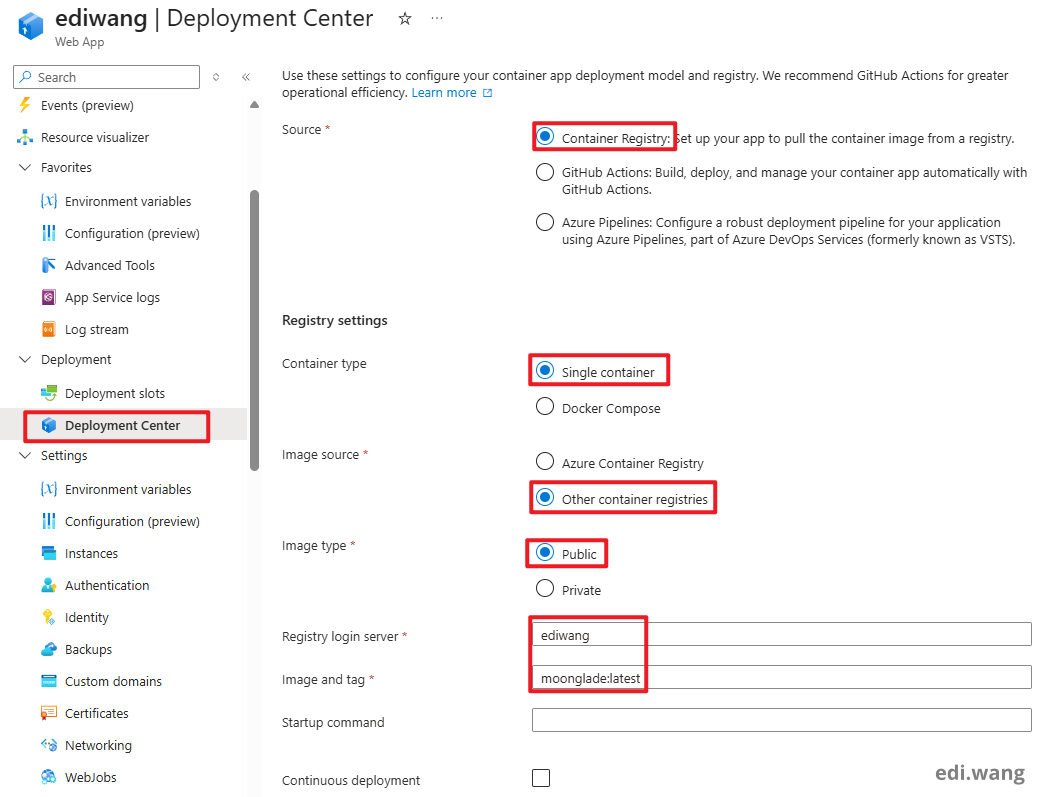
Please also be aware that App Service by default, check for common HTTP port like 80, 443, 8080. In my case, I am using 8080, so the App Service can find my workload automatically. If your container uses other ports, you need to setup it in HTTP_PORT environment variable.
Update Environment Variables
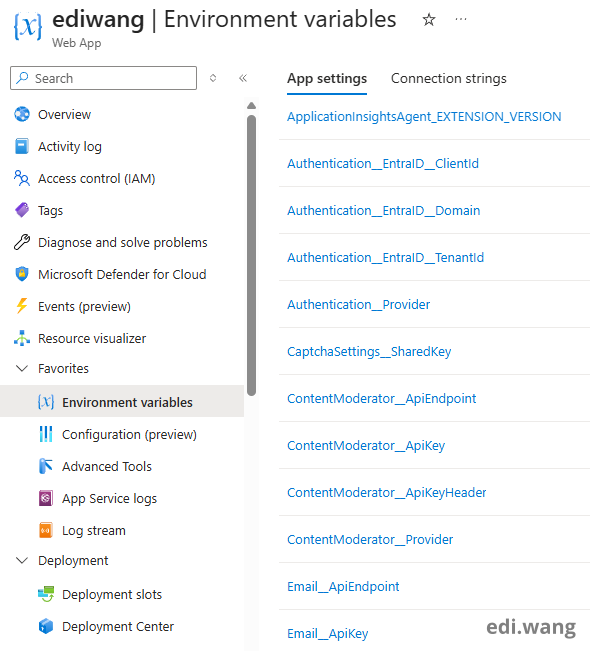
This is a key difference between Windows and Linux configuration for an ASP.NET Core application. On Linux, you need to use a double underscore __ to represent a single colon : in configuration keys.
About ASP.NET Core Runtime
In the past, if you are using FDD on Azure App Service with Windows, the ASP.NET Core runtime will be pre-installed on the underlying web worker VM. You can install a new version in the "Extension" blade when a new release comes even before Microsoft pushes the update to every server farm.
Now, it is not possible and not necessary any more. Because Docker just contains the ASP.NET Core runtime itself when building the container image. In fact, the code is now served by Kestrel instead of IIS. So you don't need to worry about things like IIS magic, ANCM blow up etc.
Migrating IIS Magics
Previously, a lot of things were handled at the web server level through the web.config file. In a typical IIS-hosted ASP.NET Core app, you might configure things like:
- Static and dynamic compression (gzip)
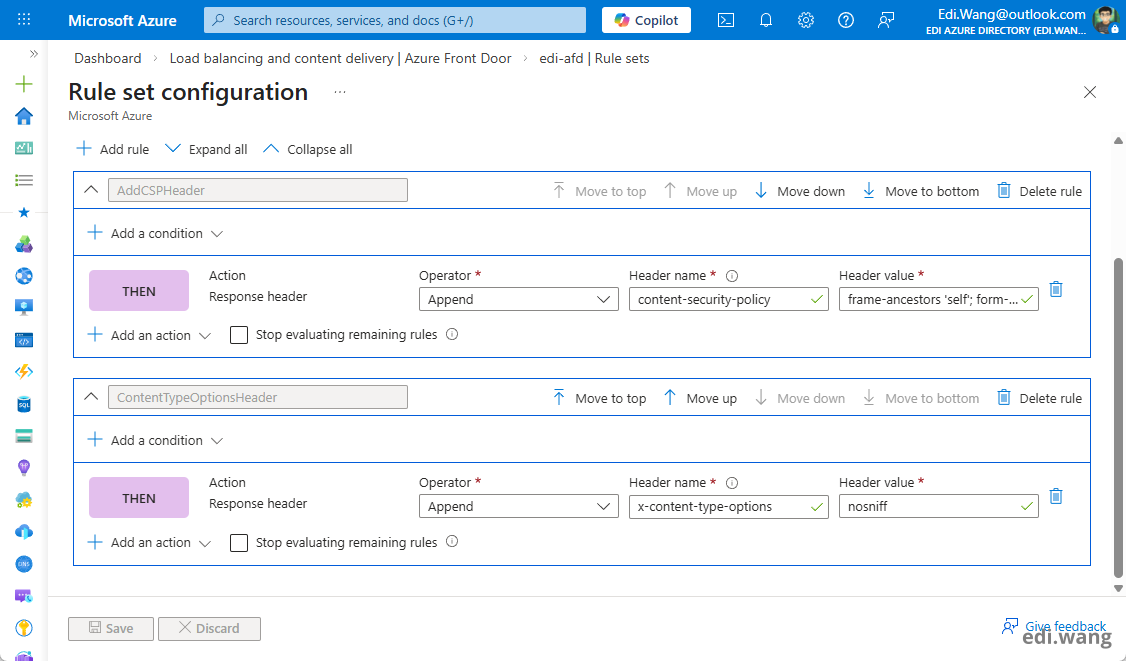
- Adding CSP headers
- MIME type registrations
- Removing IIS server headers
- URL rewrite rules
- Reverse proxy via ARR
- HTTPS redirection
On Linux with Docker, there’s no IIS and no web.config, so these concerns need to be handled differently. You either move them into your application code, or put a proxy in front of the app (like Nginx, or in my case, Azure Front Door) and configure them there instead.
Database
In Azure, I don’t run SQL Server as another container in the same Docker network. Instead, I use Azure SQL Database, just like before. So the data layer stays exactly the same, and I don’t need Docker Compose for the Azure deployment at this point.
Networking
ASP.NET Core running in Docker needs to enable forwarded headers to correctly read client IP address. In Moonglade, it can be enabled by a simple switch.
"ForwardedHeaders": {
  "Enabled": true
}
Typically, in an ASP.NET Core application, you can either setup it in the code or use the ASPNETCORE_FORWARDEDHEADERS_ENABLED=true environment variable.
Conclusion
Migrating an ASP.NET Core application from Windows to Docker on Linux and running it on Azure App Service involves a few key steps:
Remove Windows-specific dependencies in code
Eliminate assumptions about Windows paths, file systems, IIS integration, or registry access. Make sure the app is truly cross-platform.
Prepare your Dockerfile (and optional Docker Compose)
Create a Dockerfile with the right base image, permissions, and volume mappings so your data persists across container restarts. Optionally, use Docker Compose for local or on-prem scenarios.
Configure Azure App Service for Linux
Move to an App Service Linux plan, point it to your container image, configure environment variables with the correct naming conventions, and remove any IIS-specific configuration or reliance on web.config.
Once these pieces are in place, your ASP.NET Core app should run smoothly in Docker on Linux in Azure App Service.
Happy coding!
Comments