4/12/2026 Update: Using Open WebUI with App Service has issue where long streaming response will be cut off when chatting with AI. Please use Azure Container Apps with PostgreSQL instead!
Background
In my previous post, I showed how to deploy Open WebUI with Azure OpenAI on Azure Container Apps using the default SQLite database. That setup works well for quick experiments and low-traffic scenarios. But once multiple users started using the application at the same time, things went downhill quickly. Requests became noticeably slower, the UI felt laggy and the whole app started to feel fragile under concurrent load.
After a bit of digging, the main bottleneck wasn’t Azure Container Apps or Azure OpenAI, it was the default SQLite database. SQLite is file-based and doesn’t handle higher concurrency well. For a multi-user web app that’s expected to scale, it’s not the best fit.
So I decided to move the setup to:
- Azure App Service (Linux, Docker) for hosting the Open WebUI container
- Azure Database for PostgreSQL for a proper, scalable relational database
- This post walks through how to deploy that setup and the tweaks you need to make along the way
Why move away from SQLite?
A quick recap of the pain points that triggered the change.
SQLite uses file locking and is not optimized for high levels of parallel access. With several users hitting the app at the same time, you can run into locking and contention very quickly. As soon as multiple users start chatting with models, logging conversations, and interacting at the same time, performance drops. You’ll see slower queries and overall sluggishness. You can scale out containers, but if they’re all pointing at a local SQLite file in each instance, you either lose shared state or get into synchronization headaches. You really want a central, managed database.
PostgreSQL gives you proper connection pooling, better handling of concurrent reads/writes and the ability to scale and manage performance as your usage grows.
So let’s look at how to switch the deployment to App Service + PostgreSQL.
Setup
the new setup looks like this:
- Azure App Service (Linux, Docker): Hosts the Open WebUI Docker container.
- Azure Database for PostgreSQL: Central database for Open WebUI data (users, sessions, etc.).
- Azure OpenAI (Microsoft Foundry): Still used as the LLM backend, configured via environment variables in the container.
All configuration is done using environment variables on the App Service, including the database connection details.
You can do this from the portal, Azure CLI, or an ARM/Bicep template. I’ll outline the portal flow here, as it’s straightforward for most people.
Step 1: Create the PostgreSQL Database
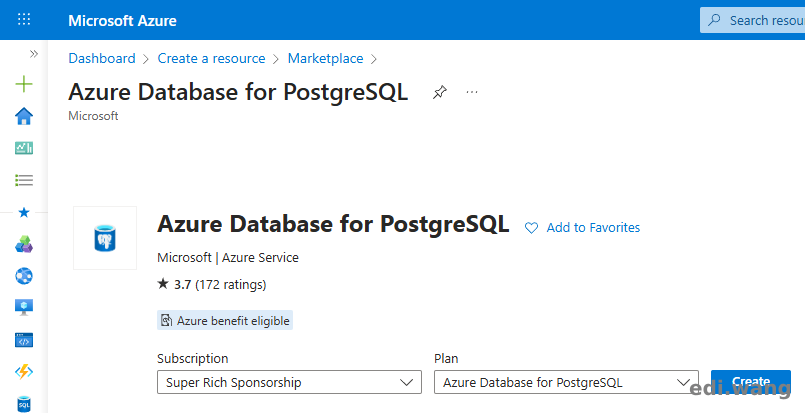
Click Create a resource, search for Azure Database for PostgreSQL.
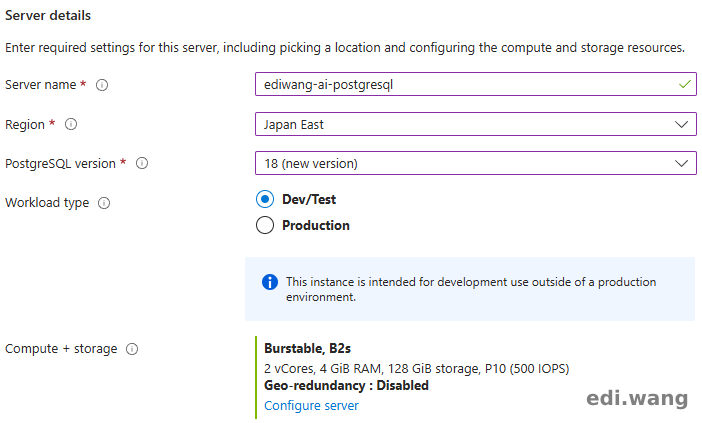
Choose your flavor configuration. In my case, I serve 5 users, so Dev/Test on a B2s machine would be enough.
Choose PostgreSQL authentication only and set your username and password, we will later use this in connection string.

Configure Networking so that your App Service can connect.
Simplest: allow public access and then configure firewall rules to allow Azure services or the App Service’s outbound IPs.
More advanced: use private endpoints and integrate App Service with a virtual network. (Not covered in this blog post)

Now, go ahead and create the database.
Once created, go to "Databases" tab and add a new databased named "open_webui_db"
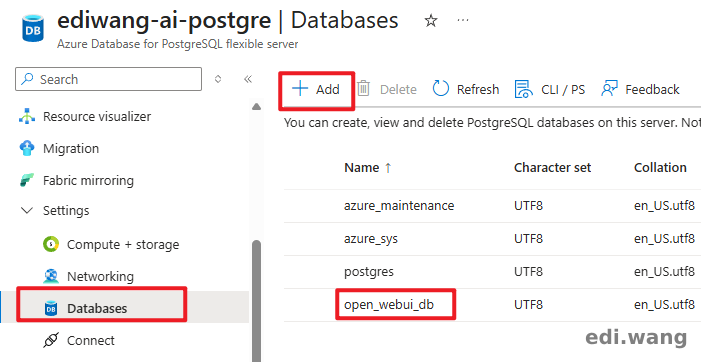
You’ll need the following pieces of information:
- PostgreSQL server host (e.g.
xxxxx.postgres.database.azure.com) - Database name (
open_webui_db) - Username
- Password
We’ll use these in the connection string in later step.
Step 2: Create the Azure App Service (Linux + Docker)
- In the Azure Portal, go to Create a resource, search for Web App.
- Under Publish, select Docker Container.
- Under Operating System, select Linux.
- Choose your Subscription, Resource Group, and name your app.
- Select an appropriate App Service plan (e.g. a B-series or P-series depending on expected load).
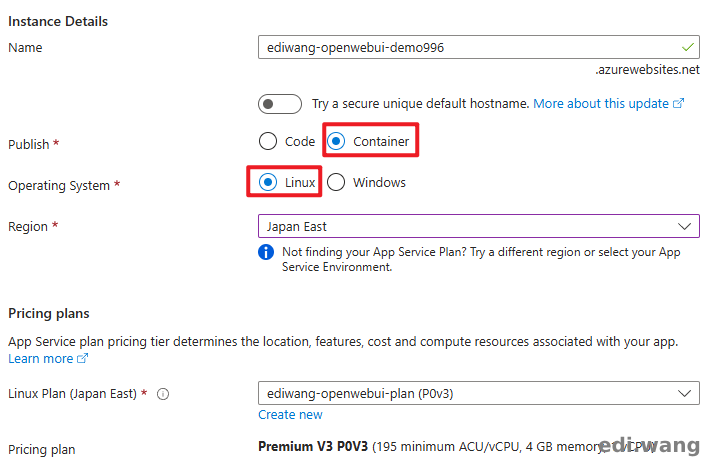
On the Docker tab:
- Choose Single Container.
- Select Docker Hub (or your own registry if you have a custom image).
- For Image and tag, use the Open WebUI image you want to deploy:
ghcr.io/open-webui/open-webui:latest
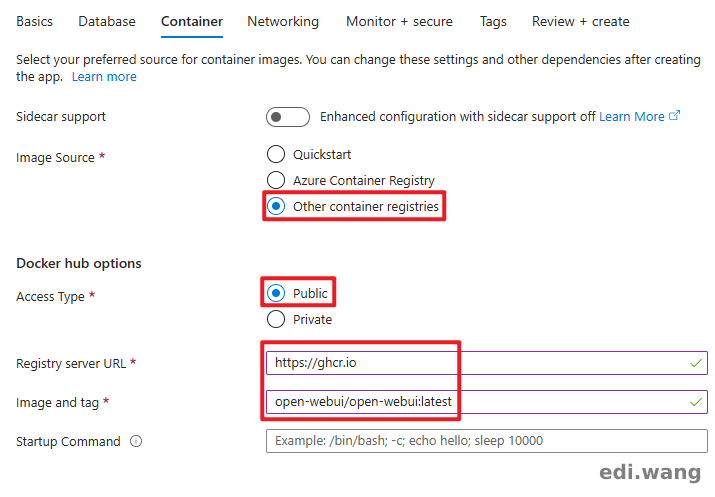
Create the Web App and wait for the deployment to finish.
Step 3: Configure App Service with Open WebUI and Environment Variables
Now that both the app and database exist, we need to configure a few settings.
Setup database connection string
Go to "Environment variables" blade of your App Service instance. Add a new app settings.
- Name:
DATABASE_URL - Value:
DATABASE_URL=postgresql://<user>:<password>@<host>:<port>/<database>
In this case, the example would be: postgresql://edi:********@ediwang-ai-postgre.postgres.database.azure.com:5432/open_webui_db
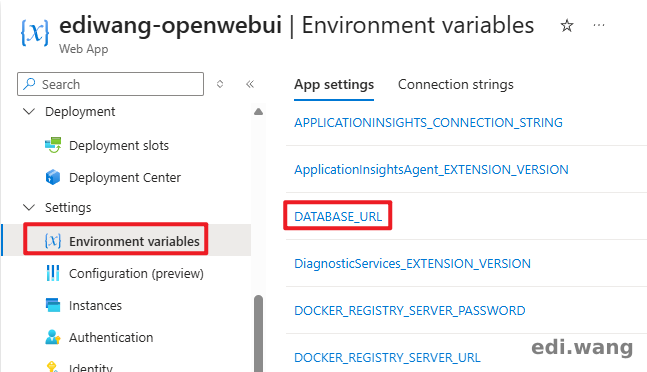
However, be careful: special characters in the connection string must be URL-encoded!
This is a subtle but important point, and it’s an easy place to get stuck. If your PostgreSQL password contains special characters like "!", the connection string won't work. To avoid this, you must URL-encode the special characters in the username and password portion of the connection string. If your password only contains alphanumeric characters, you don’t need encoding. But in practice, most generated passwords have special characters, so it’s worth being explicit about this.
Open WebUI settings
You may also configure extra environment variables for Open WebUI. The full list can be found here: https://docs.openwebui.com/getting-started/env-configuration/
In my case, I have "WEBUI_NAME" and "WEBUI_SECRET_KEY" configured.

Step 4: Restart Your Website
The final step is to restart your website. This is super important for your application settings to be effective. After that, you can visit your website URL and get started with Open WebUI.
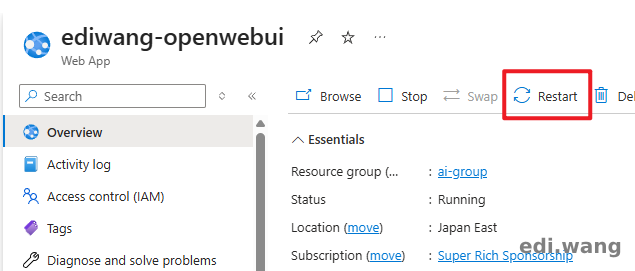
To connect to Azure OpenAI (Microsoft Foundry), please check out my previous blog post: deploy Open WebUI with Azure OpenAI on Azure Container Apps
Wrapping up
By moving from Azure Container Apps + SQLite to Azure App Service (Linux, Docker) + Azure Database for PostgreSQL you get much better concurrency for multiple users, more predictable performance under load, and a cleaner path to scale as your usage grows.
The main steps are:
- Create an Azure Database for PostgreSQL server and database.
- Create an App Service configured for Linux + Docker.
- Configure Open WebUI in App Service via environment variables, including the PostgreSQL connection string.
- Make sure any special characters in the database username/password are URL-encoded in the
DATABASE_URL.
If you’re currently running Open WebUI on Container Apps with SQLite and you’re starting to feel performance issues with multiple users, this migration is a solid next step.
Comments