Problem
I have a containerized app that relies on a data file mounted at runtime, an IP lookup API that reads qqwry.dat file. I deploy the App on Azure Container Apps, and use Azure File Share to mount the data directory for the app to use. One problem remains: How to keep the file updated automatically? e.g., to check for updates daily without manual replacing the file on Azure Storage Account.
In this post, I will introduce how to use Azure Container Apps Jobs to run a small "updater container" on a schedule. The updater downloads the latest file and writes it into the mounted file share, while the main API container reads the file from the same mount path.
Solution
1. Build an updater container image
The updater's only job is to download the latest database and atomically replace the file in /data.
For this example, the source is a fixed URL with no auth: https://github.com/metowolf/qqwry.dat/releases/latest/download/qqwry.dat
update.sh
#!/usr/bin/env bash
set -euo pipefail

# Fixed download URL (can also be overridden via environment variable)
QQWRY_URL="${QQWRY_URL:-https://github.com/metowolf/qqwry.dat/releases/latest/download/qqwry.dat}"

DATA_DIR="${DATA_DIR:-/data}"
TARGET_NAME="${TARGET_NAME:-qqwry.dat}"
USER_AGENT="${USER_AGENT:-qqwry-updater/1.0}"
LOCK_FILE="${LOCK_FILE:-$DATA_DIR/.update.lock}"

mkdir -p "$DATA_DIR"

TARGET_PATH="$DATA_DIR/$TARGET_NAME"
TMP_DIR="$(mktemp -d)"
cleanup() { rm -rf "$TMP_DIR"; }
trap cleanup EXIT

log() { echo "[$(date -u +'%Y-%m-%dT%H:%M:%SZ')] $*"; }

sha256_file() {
  sha256sum "$1" | awk '{print $1}'
}

# Use a lock to prevent concurrent writes from corrupting the file
exec 200>"$LOCK_FILE"
flock -n 200 || { log "Another update is running, exit."; exit 0; }

log "Downloading: $QQWRY_URL"
RAW="$TMP_DIR/qqwry.dat"
curl -fsSL --retry 5 --retry-delay 2 -A "$USER_AGENT" "$QQWRY_URL" -o "$RAW"

# Basic validation: non-empty and reasonable size (qqwry database is generally much larger than 100KB)
SIZE=$(stat -c%s "$RAW" 2>/dev/null || stat -f%z "$RAW")
if [[ "$SIZE" -lt 102400 ]]; then
  log "ERROR: downloaded file too small ($SIZE bytes), abort."
  exit 3
fi

NEW_SHA="$(sha256_file "$RAW")"
log "New sha256=$NEW_SHA size=$SIZE"

# If the existing file exists and has the same hash, skip replacement
if [[ -f "$TARGET_PATH" ]]; then
  OLD_SHA="$(sha256_file "$TARGET_PATH" || true)"
  if [[ "$OLD_SHA" == "$NEW_SHA" ]]; then
    log "No change (sha256 same)."
    date -u +'%Y-%m-%dT%H:%M:%SZ' > "$DATA_DIR/$TARGET_NAME.updated_at"
    echo "$NEW_SHA" > "$DATA_DIR/$TARGET_NAME.sha256"
    echo "${NEW_SHA:0:12}" > "$DATA_DIR/$TARGET_NAME.version"
    exit 0
  fi
fi

# Atomic replacement (write to a temp file first, then mv)
TMP_TARGET="$DATA_DIR/.${TARGET_NAME}.tmp"
cp -f "$RAW" "$TMP_TARGET"
sync || true
mv -f "$TMP_TARGET" "$TARGET_PATH"

date -u +'%Y-%m-%dT%H:%M:%SZ' > "$DATA_DIR/$TARGET_NAME.updated_at"
echo "$NEW_SHA" > "$DATA_DIR/$TARGET_NAME.sha256"
echo "${NEW_SHA:0:12}" > "$DATA_DIR/$TARGET_NAME.version"

log "Update done. replaced $TARGET_PATH"
Dockerfile
FROM alpine:3.20

RUN apk add --no-cache bash curl ca-certificates coreutils util-linux

WORKDIR /app
COPY update.sh /app/update.sh
RUN chmod +x /app/update.sh

ENTRYPOINT ["/app/update.sh"]
When running locally:
docker run --rm -v ./data:/data ediwang/ipinfo-updaterYou can see the output like this:
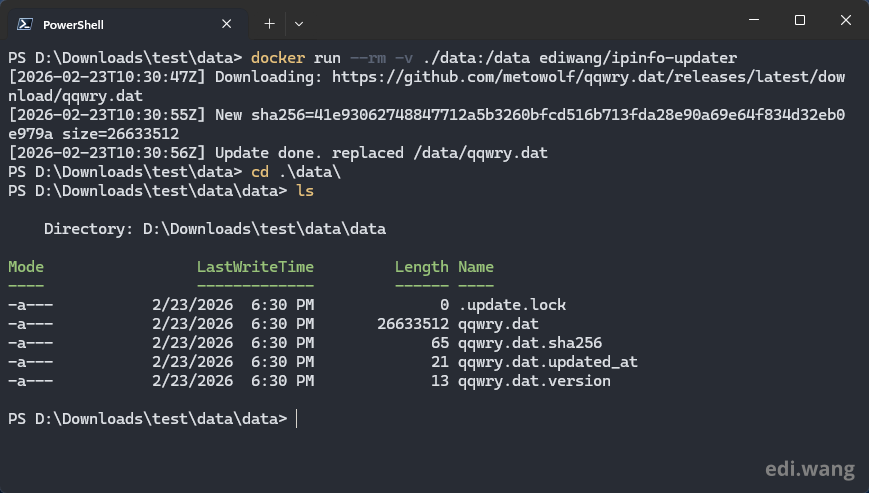
Now, you can push it to any container registry you like, in my case, Docker Hub.
2. Setup Azure Container App Jobs
Next, create a new Azure Container App Job.
- Set trigger to Scheduled
- Set CRON expression as you need. In my case, at 00:00 UTC every day, which is
0 0 * * *
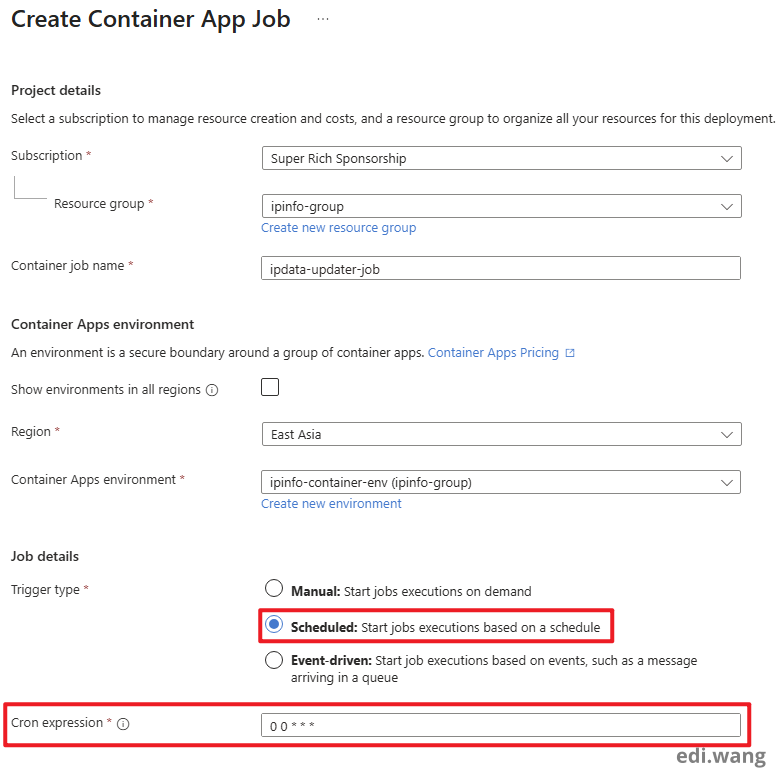
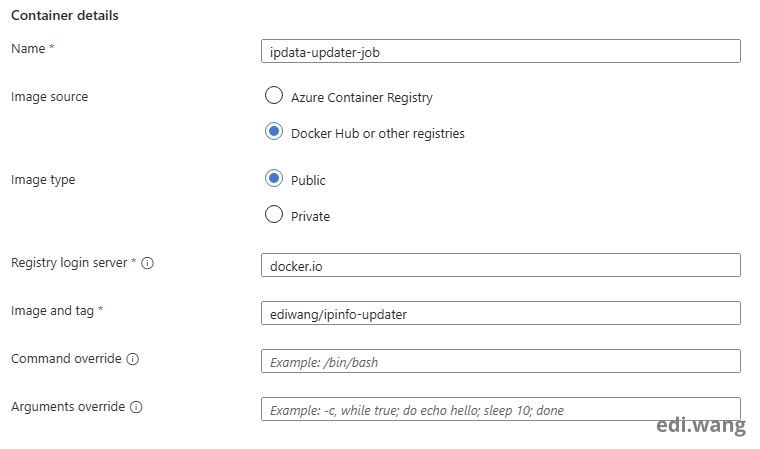
In the container configuration, set the server and image to the location of your registry.
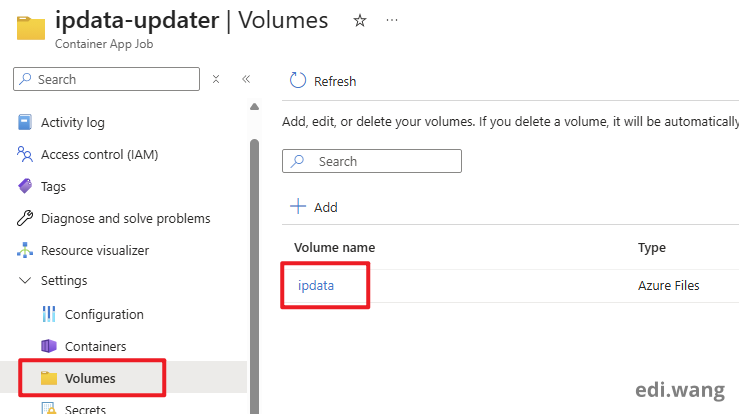
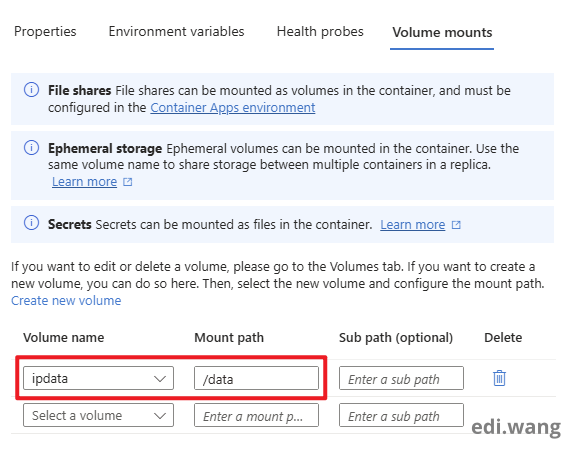
Next, go to the Volumes blade, and add the volume you configured with Azure File Share. This post won't explain the details as I assume you already done that.
If you don't know what it is, please read my previous blog post: Deploy Open WebUI with Azure OpenAI on Azure Container Apps, that post explains in detail how to setup a File Share as volume mount.
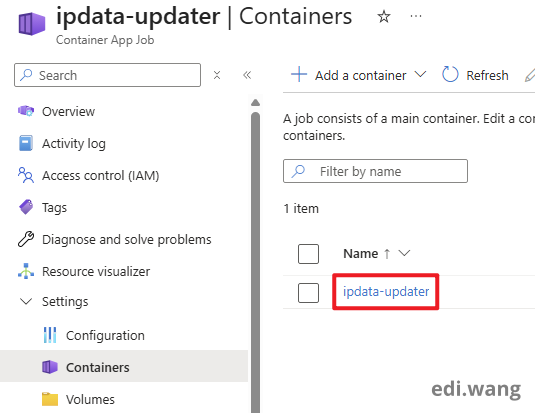
Next, go to Containers tab, and click into the container.
In Volume mounts tab, mount the volume as "/data", in my case.
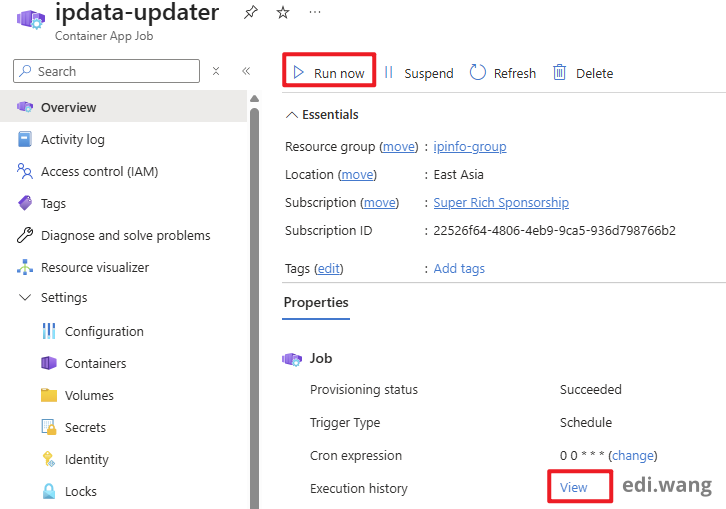
Finally, you can test the Job in Overview blade by clicking "Run now" button, and observe the history.
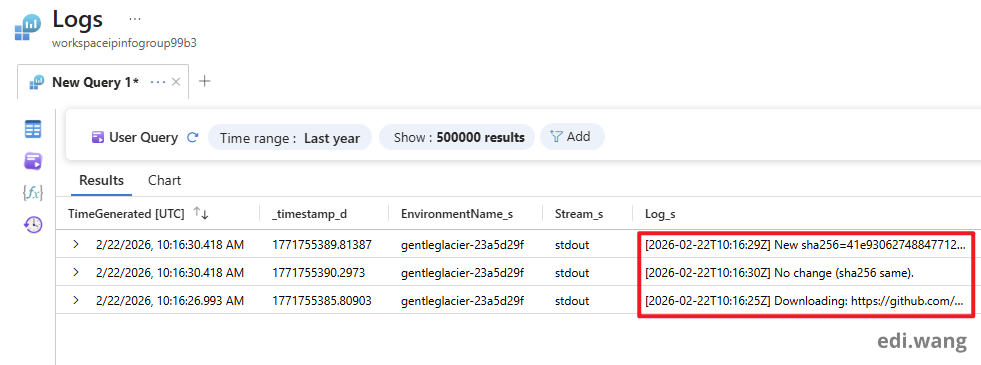
This log indicates our Job has successfully completed.
Conclusion
We can update files in Azure File Share with Azure Container App Jobs. The Azure Container App Job is just a simple container that can be setup to run on schedule using CRON expression.
This can be helpful if you already has a main workload running in Azure Container App and will use the file.
Comments